The tool is written in C# using .NET Core 3.1 framework and windows form. The database used is SQL
express
with data transferred using a mixture of stored procedures and directly written sql commands.
The overall design follows the MVP design principles. The tool is conceived from a personal need
and has been live tested, debugged, and used during the last half of a computer science degree.
The source code can be accessed from
githubor download the applicationzipfile.
The purpose of this tool is to provide a single place for a student to record resources
collected for an academic piece of writing.
Resources are used and referenced within
an assignment and can be collected from either an e-source, such as webpages or e-books,
or a physical source, such as books or journals. Storing them in a static document or
excel file can be used but requires repeated user inter-action to sort alphabetically or by subject
type.
Storing these resources in a database provides the user with enough space and organisation
potential to use this for all assignments in each module of any level academic course.
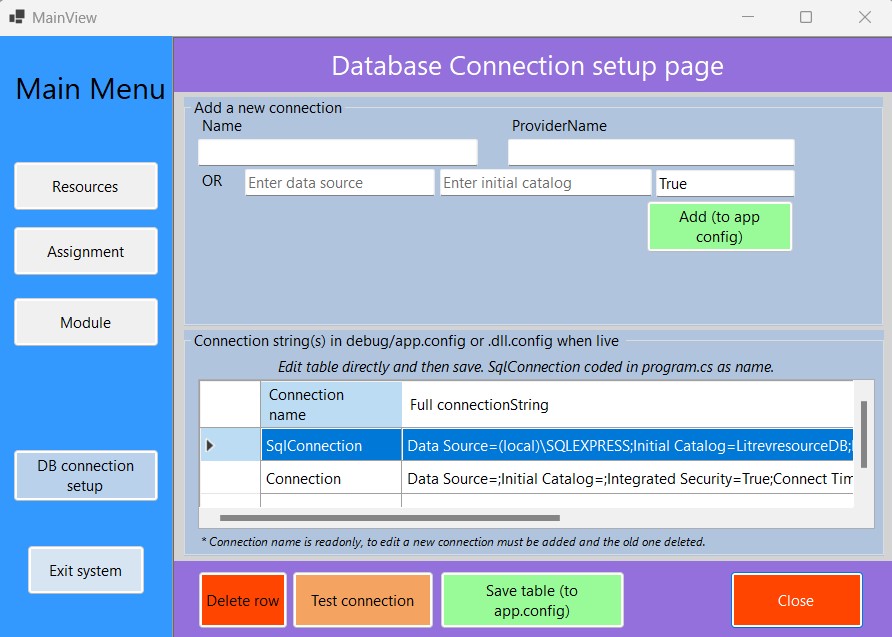
To keep it simple for the user a connection string to a SQL server can be
constructed which
,by default, uses the Windows username and password to authorise a connection. The string is
editable when created so
a username and password can be added if required. A copy of the SQL script that creates a simple
three table database is
included with the application files.
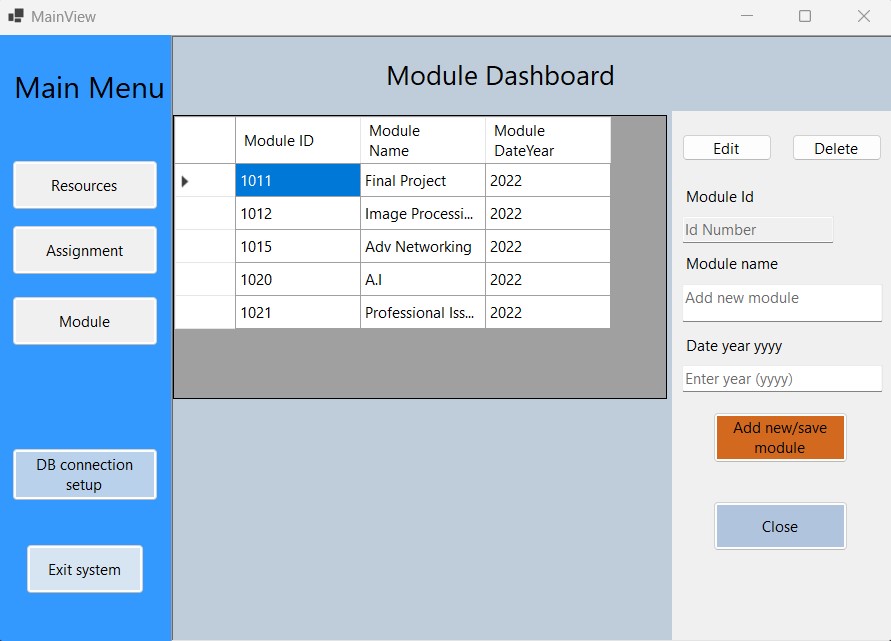
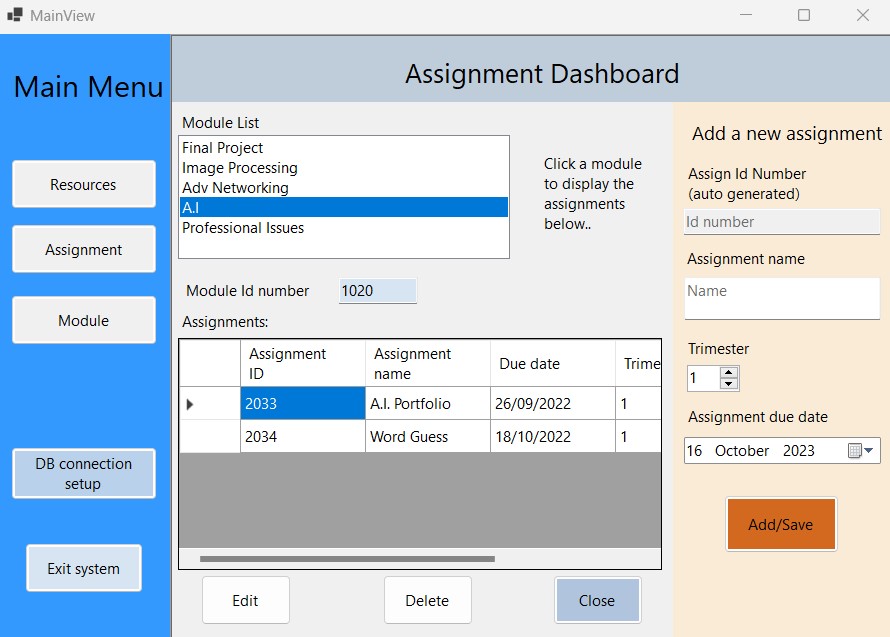
Before a resource can be recorded, a module must be created first and then an assignment
can be created for that module.
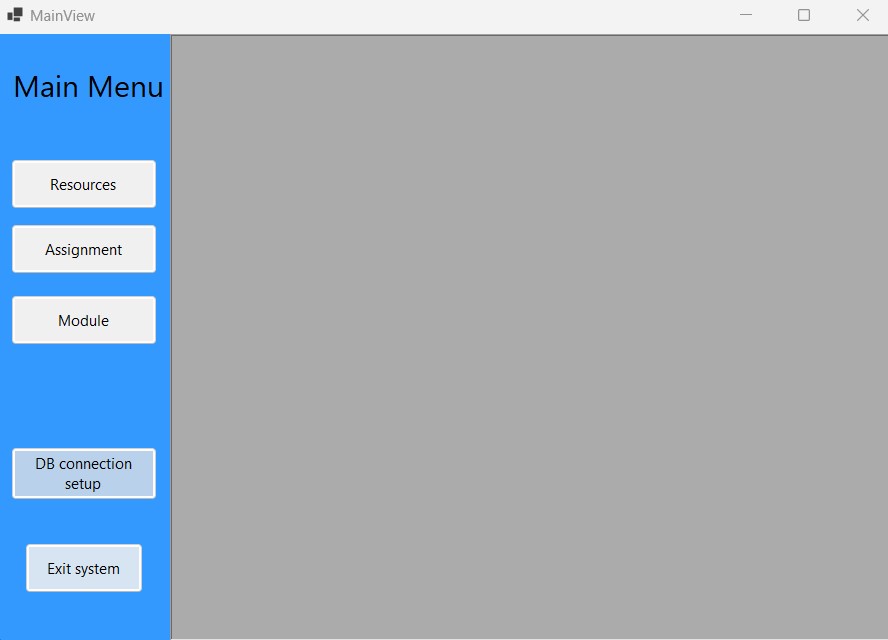
The forms have been designed to be self explanatory with few directional hints and no external user
guide supplied.
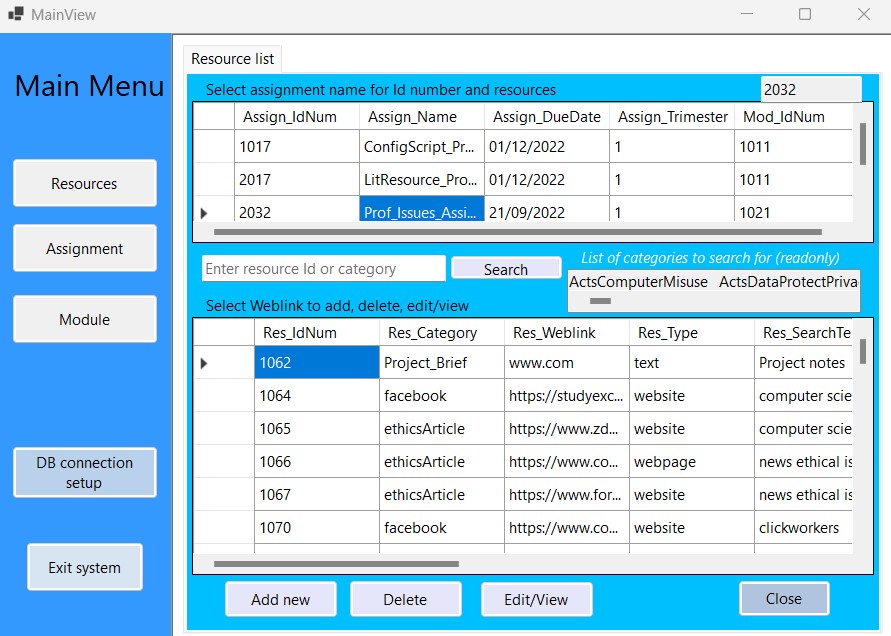
Clicking an assignment will display the resources in the bottom table. These can then be
edited or a new one added.
The search function can be used to find a resource by its
ID number or by category with the results also displayed in the bottom table.
The category is used to group resources and is entered and controlled by the user for each new
resource.
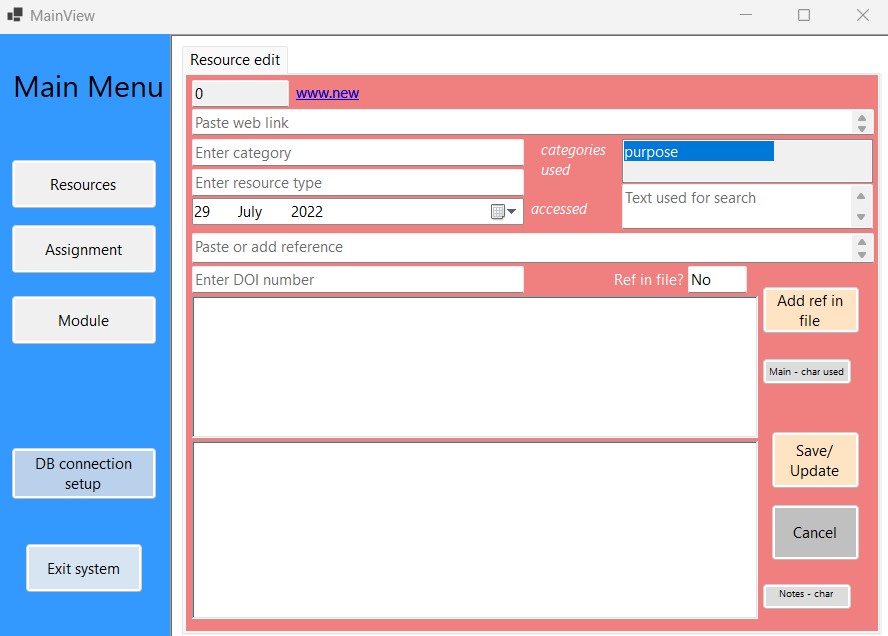
Each field has a placeholder rather than label to save space, so the overall tool size is as small
as possible.
This enables it to be opened and used alongside another application,
such as a browser or word document, even on small laptop.
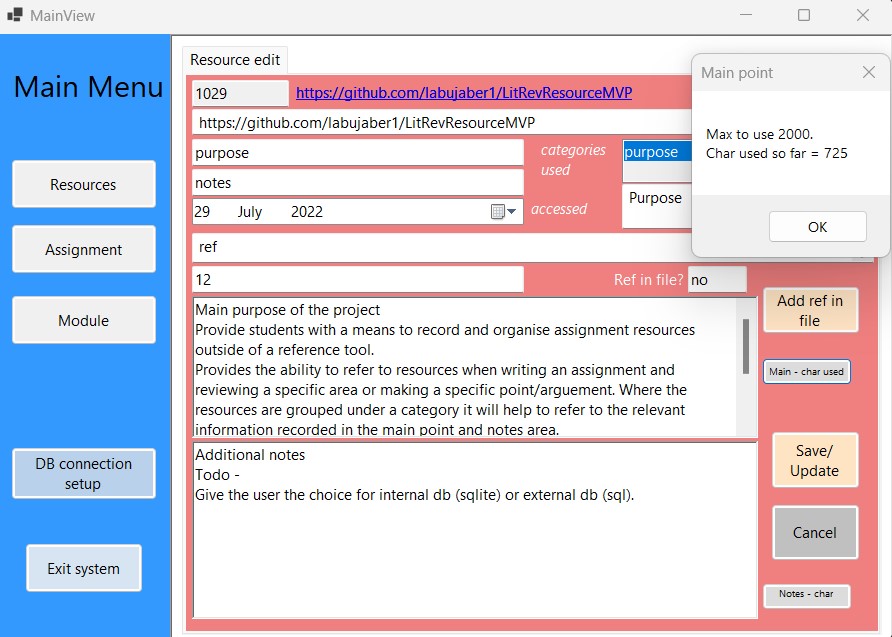
Space is provided to add notes about the resource and include relevant information
which can be referred to without having to go back to the original source. A button is included for
the user to keep track of the total characters used in the notes sections, but an error message will
appear when
saving if this is exceeded or any required field is missing data. It is possible to write a
large portion of an assignment using the note section for each resource, which can then be copied to
a document and finalised for submission.